Smart Lighting Setup Guide: Discover Easy Home Automation
Smart lighting is one of the simplest ways to upgrade your home. With just a few steps, you can control lights using your phone or voice. This smart lighting setup guide will walk you through everything in a clear and practical way.
Whether you’re new to smart devices or just setting up your first bulb, this guide keeps things simple and easy to follow.
Understanding Smart Lighting and How It Works
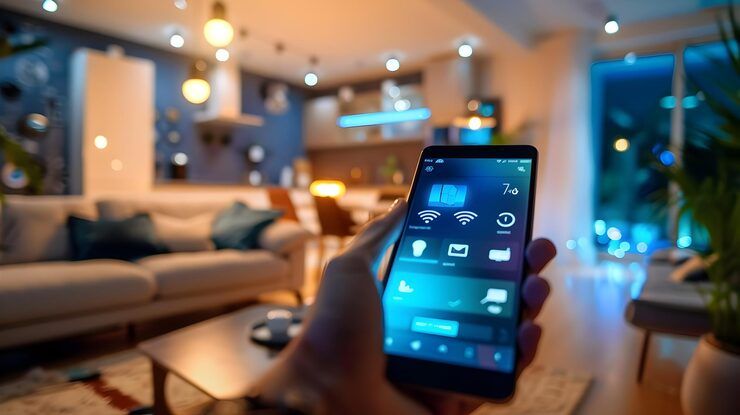
Smart bulbs connect to your phone or smart home system through Wi-Fi, Bluetooth, or a hub. Once connected, you can control brightness, color, and schedules without touching a switch.
Here’s what you typically need:
- A compatible smart bulb
- A smartphone or tablet
- The brand’s mobile app
- A stable internet connection (for Wi-Fi bulbs)
Some bulbs connect directly to your phone, while others require a bridge or hub. The setup process depends on the type you choose.
Types of Smart Bulb Connections
| Connection Type | How It Works | Best For |
|---|---|---|
| Wi-Fi | Connects directly to router | Simple home setups |
| Bluetooth | Connects to phone directly | Small spaces |
| Hub/Bridge | Uses a central device | Advanced smart homes |
Understanding this helps you choose the right setup method.
Step-by-Step: How to Setup a Smart Bulb
Setting up a smart bulb is easier than most people expect. The process is similar across brands.
Basic Setup Process
- Install the bulb into a light socket
- Turn on the switch
- Download the bulb’s app
- Follow in-app instructions to connect
- Name your bulb and assign a room
That’s the general flow. Now let’s look at specific brands and methods.
gosund smart bulb instructions
If you’re using a Gosund bulb, the process is straightforward:
- Install and power on the bulb
- Download the Gosund or Smart Life app
- Put the bulb into pairing mode (usually blinking)
- Connect to your Wi-Fi network
- Complete setup in the app
Make sure your Wi-Fi is 2.4 GHz, as many smart bulbs do not support 5 GHz networks.
how to pair sengled bluetooth bulb
Bluetooth bulbs don’t require Wi-Fi, which makes them faster to set up.
- Turn on the Sengled bulb
- Enable Bluetooth on your phone
- Open the Sengled app
- Select “Add Device”
- Choose the bulb from the list
Keep your phone close to the bulb during pairing. Distance can affect connection stability.
Philips Hue Setup Explained
Philips Hue is one of the most popular smart lighting systems. It offers both bridge-based and bridge-free setups.
how to setup a philips hue bridge
The bridge acts as a central hub for all your Hue lights.
Steps to follow:
- Connect the Hue Bridge to your router using an Ethernet cable
- Plug in the power adapter
- Install the Philips Hue app
- Press the button on the bridge when prompted
- Add your bulbs through the app
This setup allows better automation, remote control, and integration with voice assistants.
how to setup philips hue without bridge
You can also use Hue bulbs with Bluetooth if you don’t have a bridge.
- Install the Hue Bluetooth app
- Turn on the bulb
- Open the app and tap “Add Light”
- Select the bulb from the list
- Control it directly from your phone
This method is ideal for smaller setups, but it has fewer features than using a bridge.
Setting Up Other Popular Smart Bulbs
Different brands follow similar processes, but there are slight variations.
how to setup sylvania smart bulb
Sylvania smart bulbs usually connect through an app like Smart+.
- Screw in the bulb and turn it on
- Download the Smart+ app
- Create an account if needed
- Put the bulb in pairing mode
- Connect and assign it to a room
If the bulb doesn’t connect, resetting it (turning on/off multiple times) often helps.
Common Setup Tips for All Smart Bulbs
To make the process smoother:
- Use a strong and stable Wi-Fi signal
- Keep your phone near the bulb during setup
- Follow app instructions carefully
- Restart the bulb if pairing fails
These small steps can save time and avoid frustration.
Tips for a Smooth Smart Lighting Experience
Once your bulbs are set up, you can do much more than just turn them on and off.
Create Routines and Schedules
You can automate your lights to:
- Turn on at sunset
- Dim at bedtime
- Switch off when you leave home
This adds both comfort and convenience to daily life.
Use Voice Control
Many smart bulbs work with voice assistants. After setup, you can control lights using simple voice commands.
Group Lights by Room
Organizing bulbs into groups helps you control multiple lights at once. For example, you can turn off all living room lights with one tap.
Keep Your App Updated
Apps receive updates that improve performance and compatibility. Keeping them updated ensures your system runs smoothly.
Troubleshooting Common Issues
If something doesn’t work:
- Check Wi-Fi connection
- Restart the bulb and app
- Reset the bulb if needed
- Ensure correct pairing mode
Most issues are temporary and easy to fix.
Conclusion
Smart lighting doesn’t have to be complicated. With the right steps, anyone can set up and enjoy it in minutes. This smart lighting setup guide covered everything from basic setup to brand-specific instructions.
Start with one bulb, learn the process, and expand gradually. As you get comfortable, you can explore automation and voice control to make your home even smarter.
Take it one step at a time, and you’ll have a fully connected lighting system before you know it.